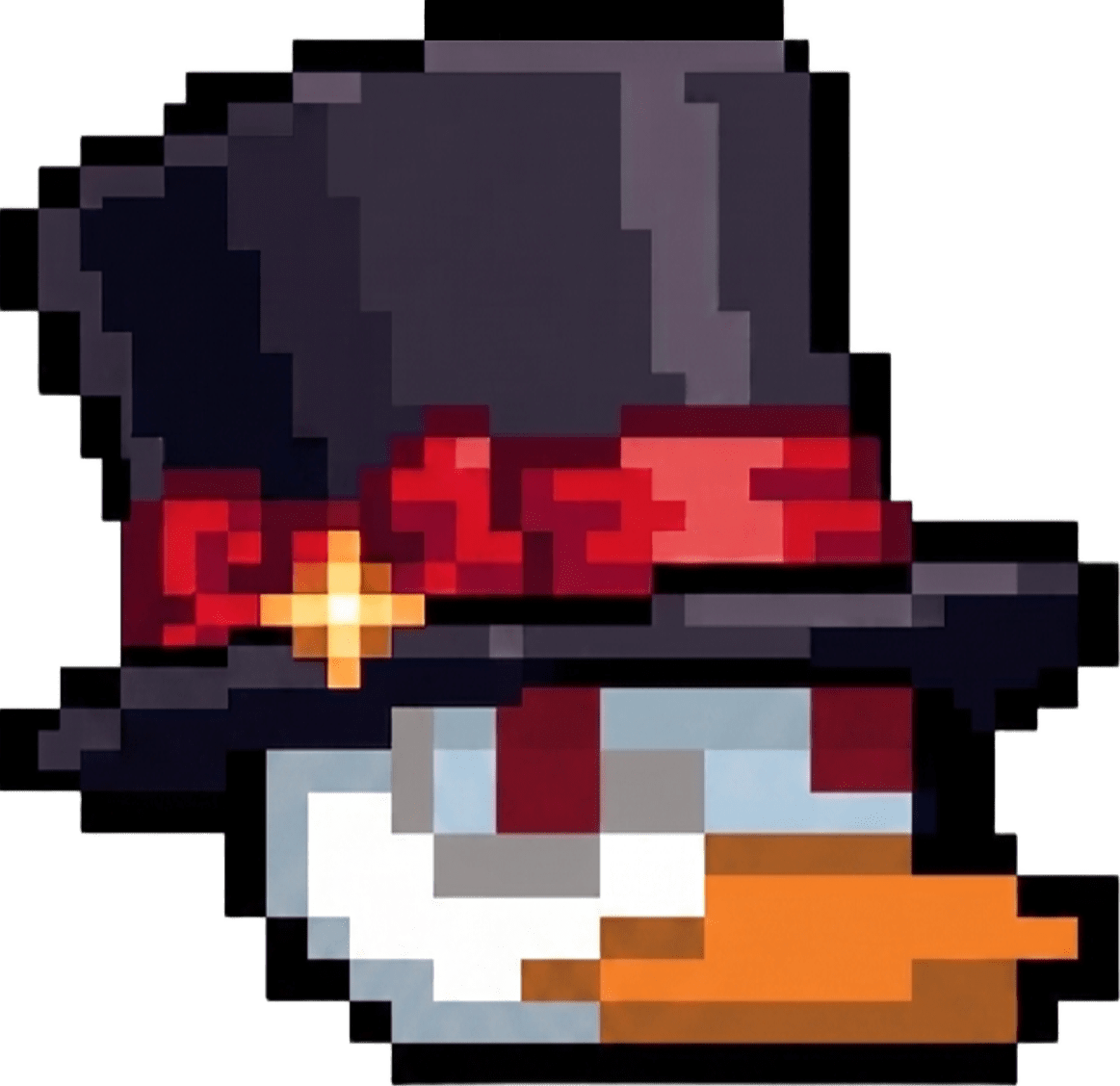
32 x 32 pixels | Click and drag to draw
How to Add Your Hat to Duck Game
Find the Game Folder
Duck Game usually looks for custom hats at this path:
(If the Hats folder is missing, just create it manually).
Drop the File
Once you download your finished file (e.g., my_cool_hat.png), copy it to the Hats folder.
Launch the Game
In the game lobby, go to the hat selection console (or the closet). Your new hat will appear in the list among the standard ones.
How to Share with Friends
For your friends to see your hat in multiplayer, they must also have this file in the same folder, or you can bundle all your hats into a "Hat Pack" (mod) via Steam Workshop.
Duckhat Tool Overview
Duck Game Hat Pack Creation Tool
Our editor is designed to make the Duck Game content creation process as intuitive as possible. Below is a detailed description of each tool you see on the control panel.
🖌 Drawing Tools
Pencil [P]
Your main tool for pixel-by-pixel drawing. Create unique shapes for your hats with high precision.
Fill [F]
Allows you to instantly fill closed areas. Perfect for quickly changing the color of large hat elements.
Move [M]
Allows you to shift the drawn object across the canvas. Indispensable for centering a logo or moving a 'Rock' sprite after import.
Eraser [E]
Removes pixels, making them transparent.
Picker [I]
Allows you to instantly pick a color from your drawing to maintain palette consistency.
⚙️ Inspector (Metadata & Offsets)
This is the "brain" of your hat. Here you code the logic the Duck Game engine reads from the PNG file:
Hat Is Tail
A checkbox that turns your hat into a custom duck tail.
Use Duck Color
Automatically replaces specific colors with the player's primary color (White, Gray, Yellow, etc.).
No Flip
Disables mirror imaging. Essential for hats with text so it doesn't read backwards.
Offsets
Horizontal/Vertical Shift: Sliders for precise hat alignment on the head. No more guessing coordinates — see the results in real-time.
📂 Actions & Layers
Upload Image
Allows you to import any PNG or JPEG file. The system automatically converts it to pixel art, scales it, and centers it on the canvas. This turns the editor into a powerful asset converter.
Copy to Quack
A magic button that copies your design from the 'Normal' tab to the 'Quack' tab, saving you time during the quacking phase animation.
Layers
The layers panel allows you to manage multiple images simultaneously, change their order, or visibility.
🚀 Global Functions (Top Bar)
IMPORT
Allows you to load an existing hat (even one created in the old Duckhat). The editor will break it down into frames and decode all metadata into sliders.
EXPORT
Generates the final PNG file in the modern 100x56 format. The file contains all frames (Normal, Quack, Cape, Rock), particle textures, and the metadata column at the 96th pixel.
💡 Why are these tools important?
Creating a hat in Duckhat Tool is more than just drawing; it's about working with the game's technical standards. Using the correct Offset ensures your hat doesn't "float" in mid-air, and the Particle Editor lets you add effects previously available only to experienced modders.